

License validation
How license checks work in production, including service outages and expired licenses.
The image editor checks the license key in the browser first, and starts at once. Then it confirms the key with the Layermetry license server in the background. A problem with the network or with the server does not stop the editor for 30 days.
Validation flow
- In the browser. The editor checks the signature of the key, its dates, and the domain of the page. This needs no network. A key that fails here is refused at once, and nothing is sent.
- Start. The editor starts right after this check.
- In the background. The editor sends the key and the domain to
POST {apiUrl}/license/validate. The server answers with a signed confirmation, which the editor keeps in the browser'slocalStorage. - While the page is open. The editor confirms again every 15 minutes. In a browser tab that is hidden, it waits until the tab is visible again.
The editor stores the confirmation under names that start with layermetry.license.. It never stores the key itself.
The check is the same on every page, served over HTTPS or over plain http://. The editor checks every signature with its own code, which is part of the package. It never asks the browser's built-in signature checker for a verdict, so a script on the page cannot change the result. One check takes about a millisecond on a desktop computer. The image editor works fully on a plain http:// page.
A refusal from the server that is not signed, for example after a network fault, never blocks the page on screen. The editor obeys it from the next page load. A signed stop from the server applies at once.
The license state in your code
onLicenseState tells your code each time the state changes. It never receives the key.
import { ImageEditor, type BlockedState } from '@layermetry/media-editor/react';

// Your own screen when the license is refused. Keep it short and helpful.
function LicenseProblem(state: BlockedState) {
  return (
    <div style={{ fontFamily: 'sans-serif', padding: 32 }}>
      <h2>The editor is not available</h2>
      <p>{state.message}</p>
      <p>Please contact your administrator. Code: {state.reason}</p>
    </div>
  );
}

export default function App() {
  return (
    <div style={{ position: 'fixed', inset: 0 }}>
      <ImageEditor
        licenseKey="YOUR_LICENSE_KEY"
        onClose={() => console.log('The editor was closed')}
        onLicenseState={(report) => console.log(`${report.state.status}: ${report.reference}`)}
        renderLicenseBlocked={LicenseProblem}
      />
    </div>
  );
}
state.status | Meaning |
|---|---|
pending-online | No longer produced. It stays in the type, so code that handles every kind still compiles. |
running | The editor works. expiringAt is set in the last 30 days before the expiry date. |
blocked | The editor does not work. reason is a code, and message is the sentence the user sees. See Error codes. |
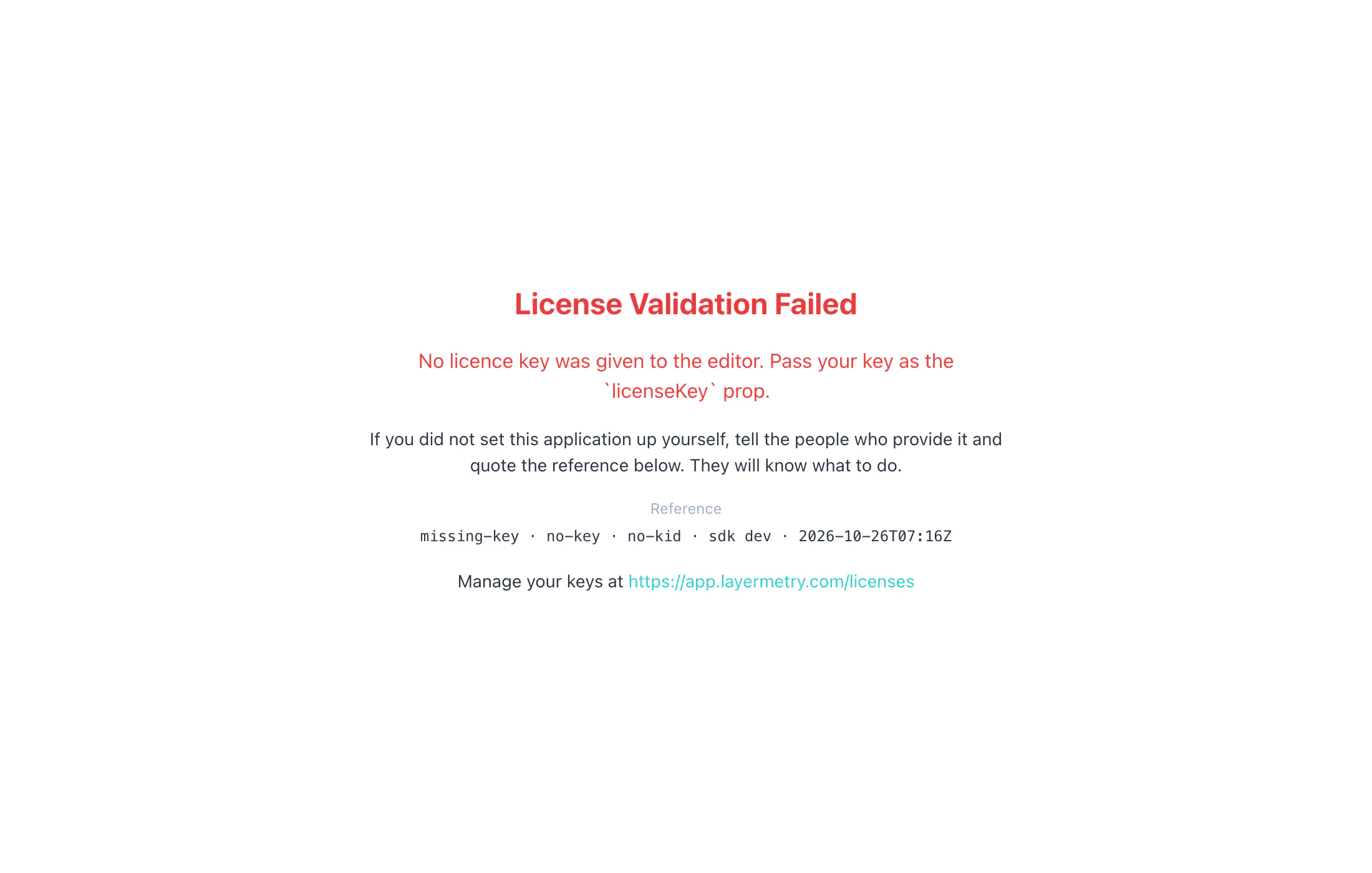
The report also has reference, a line such as malformed · no-key · no-kid · sdk 1.0.0 · 2026-09-28T19:53Z. The default screen shows the same line, so a user can quote it to your support team.
 View full size
renderLicenseBlocked replaces this screen with your own, as in the example above. It receives { status, reason, message }. Return null to keep the default screen.
Service outages
When the license server cannot be reached, or answers with an error, the editor keeps working. It tries again after 30 seconds, 2 minutes, and 10 minutes, and then every hour. The console says:
[MediaEditor] The licence could not be confirmed with Layermetry just now (network or server problem). The editor keeps running and will retry in the background. If this goes on for 30 days the editor stops. Check `apiUrl` and your network rules if it persists.The 30 days count from the last confirmation. After 2 days without one, the console shows an error. After 30 days, the editor stops, with the reason unconfirmed. The screen then has a Try again button, and one successful confirmation starts the editor again.
Layermetry can set this period for your license, between 1 hour and 90 days. The default is 30 days.
An outage never becomes a refusal. Only a clear answer from the license server stops the editor before the end of the period.
Status files
statusUrl points to signed status files that Layermetry publishes on separate storage. From the second failed confirmation in a row, the editor reads them. A status file that confirms the license extends the 30 days. Without statusUrl, the editor makes no such request.
statusUrl="https://status.example.com/license"Use the address that Layermetry gives you. The editor requests GET {statusUrl}/status/<key hash>.jws and GET {statusUrl}/stopped.jws.
Refused keys
When the license server refuses the key, for example because the license was cancelled, the editor keeps the answer. The session that is open continues, and the editor does not start on the next page load. The console says why.
A signed stop from Layermetry stops the editor at once.
Expired licenses
The key carries its expiry date. From 30 days before it, the console warns each time the editor starts, and onLicenseState reports expiringAt.
From the expiry date on, the editor does not start. It shows "This licence key expired on" and the date, with the reason expired. The editor allows 5 minutes for a clock that is slightly wrong.
There is no grace period after the expiry date. Renew in time: create a new key at app.layermetry.com/licenses and deploy it. See Expiry and renewal.
A device with a wrong clock can see a valid key as expired, or as not valid yet. The message then asks the user to check the date and time of the device.