

Export
Render the finished video file.
Export renders the design as an MP4 or WebM video file, or as an animated GIF. The user downloads it, or your code receives it through onExport.
Setup
Pass onExport to receive the file. With it, the Export panel shows Save & Exit:
import { VideoEditor } from '@layermetry/media-editor/react';

export default function App() {
  return (
    <div style={{ position: 'fixed', inset: 0 }}>
      <VideoEditor
        licenseKey="YOUR_LICENSE_KEY"
        onExport={(file) => console.log(`Exported ${file.name}: ${file.size} bytes`)}
        onClose={() => console.log('The editor was closed')}
      />
    </div>
  );
}
The Export button in the app bar opens the Export panel. Cmd + Shift + E on a Mac, or Ctrl + Shift + E on Windows and Linux, opens it too, while the keyboard is in the canvas or the timeline. The keys do nothing while the user types in a text field.
In Firefox, while the developer tools are open, the same keys are also the shortcut for their Network panel.
The panel has four sections, and these buttons:
| Button | What it does |
|---|---|
| Save draft | Saves the unfinished design through onSaveTemplate. See Drafts. |
| Export | Renders the video, downloads it in the browser, and calls onExport with it. Extra sizes are only downloaded. |
| Save & Exit | Renders the video, calls onClose, and then calls onExport with the file. |
| Share… | Asks for an email address and a name, and calls onExport with them in extras.email. |
| Download .srt, Download .vtt, Download .txt | In the Captions file row. Save the captions as an SRT file, a VTT file, or a plain transcript. Shown only while the video has captions. See Subtitles. |
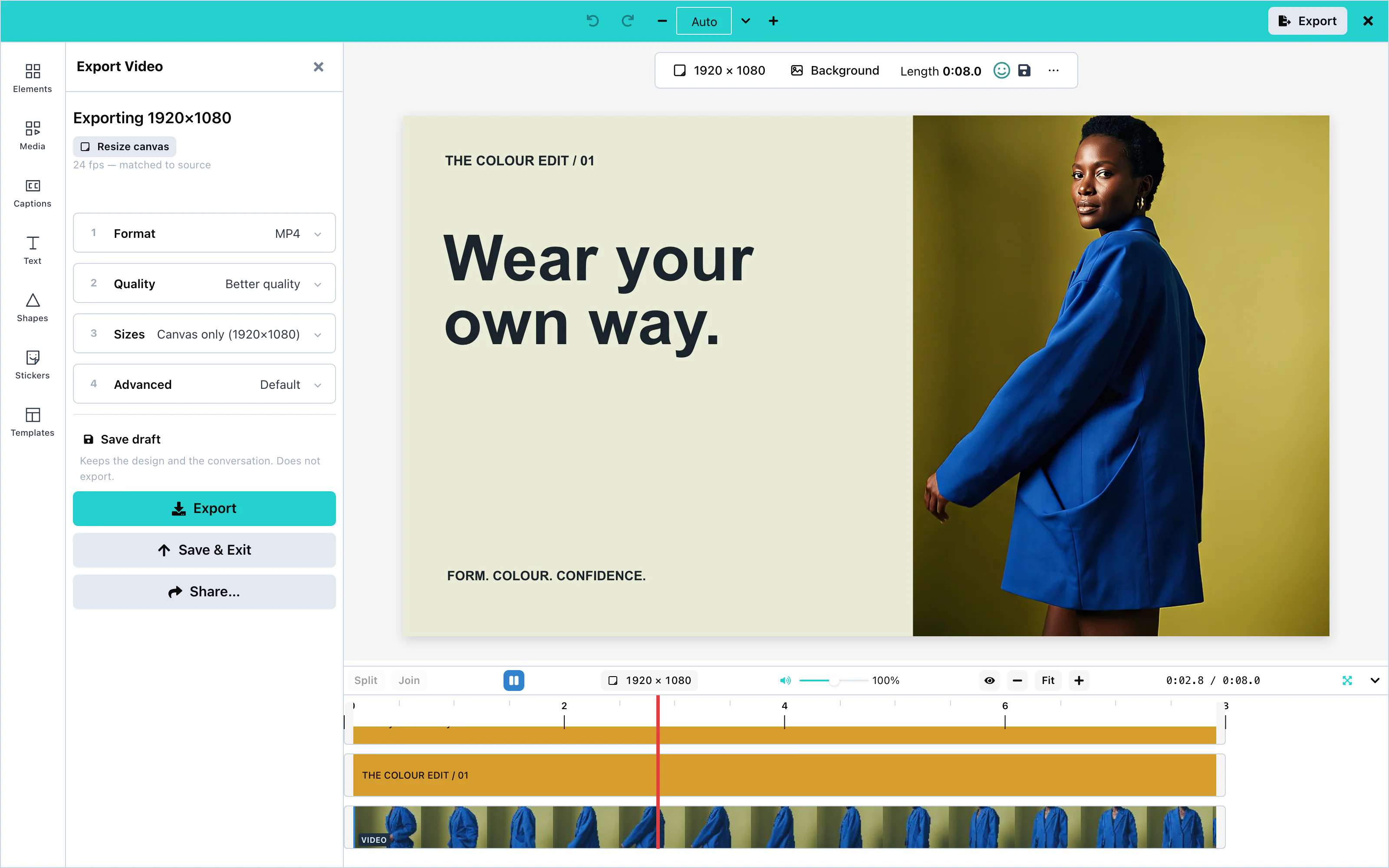 View full size
Browser requirements
Export runs in the user's browser. The browser encodes the picture and the sound, and nothing is downloaded to do it. The editor needs three things from the browser:
- A secure page. The page must be served over HTTPS, or from
localhost. On a plainhttp://page, the browser gives the page no video encoder. - Video encoding. Current versions of Chrome, Edge, Firefox, and Safari on the desktop can encode video for a web page.
- Sound encoding, for a video with sound. The browser must be able to save the sound in the chosen file. The table below shows which browsers can.
| Browser | Sound in an MP4 | Sound in a WebM |
|---|---|---|
| Chrome and Edge on Windows and Mac | Yes | Yes |
| Chrome and Edge on Android | Yes | Not tested |
| Chrome and Edge on Linux and on Chromebooks | No | Yes |
| Firefox on a computer | No | Yes |
| Safari 26 or newer | Yes | Yes |
| Safari before 26 | No | No |
A video without sound exports in all of these browsers, as MP4 or WebM. A GIF needs no video encoder from the browser. See GIF export. When the design has sound and the browser can keep it only in a WebM, the Export panel chooses WebM by itself. See WebM.
The editor checks the browser before every export and shows a sentence when the browser cannot do the work. See Export failures.
Source clips
Export reads video clips from MP4, MOV, WebM, and MKV files. The video can be H.264, HEVC, VP8, VP9, or AV1, and the sound can be AAC or Opus. AV1 exports only in a browser that can decode AV1. A sound-only Opus or AAC file exports as a sound clip.
The editor does not convert a file when it is added. The file you store through onUploadAsset stays exactly as the user gave it. A long file is read a piece at a time.
Export refuses a clip in these cases, and says why:
| Clip | Why |
|---|---|
| Video in Theora, MPEG-4 Part 2, MPEG-2, or ProRes | No browser can decode these formats for a web page. Convert the clip to H.264 (MP4) or VP9 (WebM). |
| A fragmented MP4, or an MKV file whose frames are compressed a second time inside the file | Export cannot read the file. Save the clip again as an ordinary MP4, MOV, WebM, or MKV file. |
MP4
The file is an MP4 video, with H.264 or HEVC video and AAC sound. It plays in every browser and is accepted by every platform. Its name is exported-video.mp4. An export that waited in the queue behind another export is numbered, for example exported-video-2.mp4.
The sections of the panel:
| Section | Options |
|---|---|
| Format | MP4, GIF, or WebM. The panel opens on MP4, or on WebM when the design has sound and this browser can keep the sound only in a WebM. |
| Quality | Better quality (sharpest picture, recommended) or Smaller file (a noticeably smaller file, which older devices may not play). |
| Sizes | The current canvas, and more sizes with Add size or Social pack. Each size is a separate video. |
| Advanced | Codec, frame rate, bitrate, and more. See the table below. |
The Advanced section applies to every file of the export:
| Option | Values |
|---|---|
| Codec | For MP4: H.264 (most compatible), or HEVC (H.265) for smaller files that not every player reads. For WebM: VP9. A GIF has none. |
| Frame rate | Match source, 30 fps, or 60 fps. It is a ceiling: the editor never invents frames. |
| Bitrate ceiling | 3, 5.4, 6, 9, or 15 Mbps |
| Bitrate mode | Variable or Constant. The choice is passed to the browser's video encoder, and the encoder decides how closely to follow it. Many browsers, Chrome among them, write the same file for both choices. |
| Sessions | Hardware only (uniform quality), or hardware and CPU together (faster) |
| Captions | Shown only while the video has captions: In the picture (the default), Subtitle track, or Both. See Subtitles. |
When the width or the height of the canvas is an odd number, the editor offers to change the canvas to the nearest even size before it exports. H.264 needs even sizes.
With captions, Advanced also chooses how they reach the file: in the picture, as a subtitle track, or both. The Captions file row saves them as a separate .srt, .vtt, or .txt file. See Subtitles.
Photo credits
When the design holds a stock photo with a credit, the Export panel shows two switches: Show photo credits on the canvas and Include photo credits in the export. The second one writes the credits, such as "Photo by Ana on Unsplash", in a small dark box in the bottom-left corner of the video. The user's choice is saved with the design. See Stock media.
GIF export
A GIF is a moving picture with no sound. It is for chat apps and short loops. The Format step describes it as "A moving picture with no sound. For chat apps and short loops. Files grow quickly beyond a few seconds."
The editor writes the GIF itself. It needs no video encoder from the browser, so it is made the same way in Chrome, Firefox, and Safari. The GIF row is greyed only when the browser cannot draw frames in the background, with the sentence "This browser cannot render frames off-screen, which this option needs."
The panel never chooses GIF by itself. The user chooses it. The summary line at the top of the panel then reads, for example, "Exporting 480×270 · GIF · no sound".
The two Quality cards decide the frame rate and the colors:
| Card | What it says | Frame rate | Colors | Dithering |
|---|---|---|---|---|
| Better quality | Smoother motion and more colours. Larger file. | 15 fps | 256 | On |
| Smaller file | Fewer frames and colours. Best for short loops. | 10 fps | 128 | Off |
Dithering hides the steps between colors with fine dots. Without it, areas of color are flat, and the file is smaller.
For a GIF, Advanced has one field, Frame rate: 10, 12, 15, 20, or 24 fps. It has no Match source. Its caption says: "More frames per second means a larger file. GIF services recommend under 200 frames in total." A GIF has no codec, bitrate, or sessions field. Colors, dithering, and looping are not fields: the cards decide colors and dithering, and a GIF made in the panel always loops.
A GIF plays at up to 24 frames per second. A design at a higher frame rate is exported at 24 frames per second, at its normal speed.
The Sizes step shows a sentence when the first size is wider than 720 pixels, or the design is longer than 15 seconds: "GIF services accept up to 15 seconds and recommend under 6; 480 pixels wide is the usual size. Most chat apps accept a few megabytes." The export still runs. The user decides.
A GIF has no subtitle track. Its captions are always drawn into the picture. In place of the Captions field, Advanced says: "Captions: drawn into the picture. A GIF cannot carry a subtitle track." Export without sound never appears for a GIF, because a GIF has no sound.
The file's type is image/gif. Its name is exported-video.gif, or a numbered name such as exported-video-2.gif when it waited in the queue behind another export. The export runs in the background like a video export, and onExportProgress reports its progress.
A GIF is slower to make and larger than a video. In one test in Chrome, a 60-second 1280×720 design took 51 seconds and made an 82 MB GIF at 15 fps. The same design took 4.5 seconds as a 68 MB MP4, and 6.5 seconds as a 44 MB WebM. Real footage gives other numbers.
With onThumbnails, a GIF export also makes thumbnails. They are made from the design, not cut from the GIF. See Thumbnails.
GIF from your own code
The exportStart action takes format: 'gif', and three arguments that apply to a GIF only:
| Argument | Values | When left out |
|---|---|---|
gifColors | 64, 128, or 256: how many colors each picture may use. Fewer colors make a smaller file, with visible bands of color. | 256 |
gifDither | true hides the steps between colors with fine dots. false gives flat areas and a smaller file. | true |
gifLoop | true plays for ever. false plays once. | true |
fps for a GIF is at most 24. A GIF request is refused at once, with one of these sentences:
- A codec, a bitrate, or a bitrate mode: "A GIF has no codec or bitrate; leave those out."
subtitles: 'track'or'both': "A GIF cannot carry a subtitle track. Use burn, or leave subtitles out."fpsabove 24: "A GIF plays at up to 24 frames per second."gifColors,gifDither, orgifLoopwithoutformat: 'gif': "gifColors, gifDither and gifLoop apply to a GIF only. Add format "gif", or leave them out."
WebM
A WebM file carries VP9 video and Opus sound. It plays in web browsers. YouTube, TikTok, and LinkedIn accept it. Instagram does not.
WebM keeps the sound in Firefox, and in Chrome and Edge on Linux and on Chromebooks. These browsers cannot save sound in an MP4 video. When the design has sound and the browser can keep it only in a WebM, the Export panel opens with WebM chosen. It says: "This browser cannot save sound in an MP4 video. WebM keeps the sound." In every other case, the panel opens on MP4.
The user can still choose MP4 in such a browser. The MP4 row then shows the same sentence. A notice above the Export button says: "This browser cannot save sound in an MP4 video, so this video cannot be exported here. To export it with its sound, use Chrome or Edge on Windows, Mac or Android, or Safari 26 or newer."
The two Quality cards write VP9 for a WebM:
| Card | What it says | Bitrate ceiling |
|---|---|---|
| Better quality | Sharpest picture. Plays in every modern browser. Recommended. | 9 Mbps |
| Smaller file | Noticeably smaller, softer in fast motion. | 5.4 Mbps |
When the user changes the format, the Quality step goes back to Better quality for the new format.
In Advanced, the Codec list shows VP9 only. Under Sessions, the panel says: "VP9 is made by the processor, so the two choices behave the same here."
A WebM file made by the editor has no subtitle track. Its captions are always drawn into the picture. In place of the Captions field, Advanced says: "Captions: drawn into the picture. A WebM file made here carries no subtitle track; download the .vtt file below for web players." See VTT export.
The file's type is video/webm. Its name is exported-video.webm, or a numbered name such as exported-video-2.webm when it waited in the queue behind another export. The file has an index at its start, so a player can jump to any moment at once.
Export without sound
Export without sound is a box in Advanced. It appears only while the design has sound and this browser cannot save the sound in the chosen file. For example, it appears when the user chooses MP4 in Firefox. Its caption says: "This browser cannot save the sound in this kind of file. Ticking this makes a file with the picture only."
When the box is ticked, the summary line at the top of the panel ends with "no sound", and the notice above Export goes away. The editor never makes a video without its sound unless the user ticks this box.
WebM from your own code
The exportStart action takes format: 'webm'. codec accepts 'vp9' for a WebM, and 'h264' or 'hevc' for an MP4. withoutSound: true makes a file with the picture only. It is never the default. Without format, a codec of 'vp9' makes a WebM, and any other request makes an MP4.
A request that the file cannot hold is refused at once, with one of these sentences:
- "WebM holds VP9 video. Choose vp9, or choose MP4 for H.264 and HEVC."
- "MP4 holds H.264 or HEVC video. Choose one of those, or choose WebM for VP9."
- "A WebM file made here carries no subtitle track. Use burn, or choose MP4 for a subtitle track."
The readExportCapabilities action says which files this browser can make, and which of them keep the sound. Call it before exportStart when the video has sound. In Firefox, its message is:
MP4: picture yes, sound no (this browser cannot save sound in an MP4 video). WebM: picture yes, sound yes. GIF: yes, never with sound. For a video with sound, use format "webm".Its data.formatKeepingSound names the file to ask for, or is null when no file made in this browser can keep the sound. While the editor is still checking the browser, the action answers ok: false with "This browser is still being checked for which files it can export. Ask again in a moment." Only an editor on a page can answer. On the headless runtime, the action answers ok: false with "This runtime cannot check which files this browser can export: it has no export engine. Only an editor mounted in a browser can answer."
Progress and cancellation
Exports run in the background, one at a time. A chip in the app bar lists them, and each row has Cancel export, or Retry export after a failure. The user keeps editing while an export runs. A later change does not reach an export that has started.
Save & Exit closes the editor as soon as the first frame is written, usually in less than two seconds. The file is then finished in the background, and onExportProgress reports the progress to your page:
onExportProgress={(event) => {
  if (event.jobType === 'thumbnails') return;
  console.log(event.done ? 'Export finished' : `Exporting: ${Math.round(event.percent)}%`);
}}
Events has a complete example and every field of the event.
Export failures
When the browser cannot export the design, no file is made. The export list shows a failed row with a sentence that says why, and two buttons: Retry, and Export current canvas, which exports the design as it is now. After Save & Exit, the editor stays open, and onExportProgress receives one last event with done: true and the same sentence as error.
| Code | The sentence the user sees |
|---|---|
api-missing | This browser does not have the video features that export needs, so the video could not be exported. |
audio-encoder-unsupported | This browser cannot save sound in an MP4 video, so the video could not be exported. To export it with its sound, use Chrome or Edge on Windows, Mac or Android, or Safari 26 or newer. |
webm-sound-unsupported | This browser cannot save sound in a WebM video, so the video could not be exported. To export it with its sound, use Chrome, Edge or Firefox on a computer, or Safari 26 or newer. |
decoder-unsupported | One of your clips uses a video format this browser cannot decode, so the video could not be exported. Convert that clip to H.264 (MP4) or VP9 (WebM) and add it again. |
unsupported-container | One of your clips is in a file type that export cannot read. MP4, MOV, WebM and MKV files can be read; save the clip as one of those and add it again. |
encoder-unsupported | This browser on this device cannot encode the chosen format at this size. Try a smaller size or H.264. |
odd-dimensions | H.264 cannot save a video with an odd width or height. Make the canvas one pixel smaller, or choose HEVC. |
offscreen-canvas-unavailable | This browser cannot draw video frames in the background, which export needs. |
storage-unavailable | This export is too large to hold in memory, and this browser cannot write it to disk. Try a shorter timeline or a lower bitrate. |
empty-timeline | There is nothing on the timeline to export yet. |
codec-not-implemented | This format is not available for export yet. Choose H.264 or HEVC. |
probe-error | This browser could not check whether it can export this video, so the export did not start. |
When several reasons apply, the user sees the first one only. No other export method runs in place of a refused export.
Handling the export
onExport receives a File of type video/mp4, video/webm, or image/gif. Upload it to your storage:
import { VideoEditor } from '@layermetry/media-editor/react';

async function handleExport(file: File) {
  const body = new FormData();
  body.append('video', file, file.name);
  const response = await fetch('/api/videos', { method: 'POST', body });
  if (!response.ok) {
    console.error(`Upload failed with status ${response.status}`);
    return;
  }
  console.log(`Uploaded ${file.name} (${file.size} bytes)`);
}

export default function App() {
  return (
    <div style={{ position: 'fixed', inset: 0 }}>
      <VideoEditor
        licenseKey="YOUR_LICENSE_KEY"
        onExport={handleExport}
        onClose={() => console.log('The editor was closed')}
      />
    </div>
  );
}
The editor does not wait for your upload. With Save & Exit, it calls onClose before the file is ready. Keep the upload running in your page after the editor is removed.
When the video has captions, the second argument of onExport also carries them as three files: extras.srt, extras.vtt, and extras.txt. See Files in onExport.
Thumbnails
With onThumbnails, each export also makes a preview: a still JPEG picture and a short silent MP4 clip, cut from the finished video. onThumbnails receives them after onExport:
import { VideoEditor, type ThumbnailDelivery } from '@layermetry/media-editor/react';

function handleThumbnails(delivery: ThumbnailDelivery) {
  for (const thumbnail of delivery.thumbnails) {
    console.log(`Thumbnail ${thumbnail.type}: ${thumbnail.file.name}, ${thumbnail.file.type}, ${thumbnail.file.size} bytes`);
  }
  for (const note of delivery.notes) {
    console.warn(`No thumbnail: ${note.reason}`);
  }
}

export default function App() {
  return (
    <div style={{ position: 'fixed', inset: 0 }}>
      <VideoEditor
        licenseKey="YOUR_LICENSE_KEY"
        onClose={() => console.log('The editor was closed')}
        onExport={(file) => console.log(`Exported ${file.name}: ${file.size} bytes`)}
        onThumbnails={handleThumbnails}
        videoThumbnails="always"
      />
    </div>
  );
}
videoThumbnails decides when thumbnails are made:
| Value | When |
|---|---|
'ask' | The default. Advanced shows a box, already ticked, that the user can untick for one export. |
'always' | On every export, without asking. |
'never' | Never on its own. |
Without onThumbnails, the editor makes no thumbnails and shows no box. In TypeScript, videoThumbnails other than 'never' needs onThumbnails.
delivery.notes has one sentence for each thumbnail that could not be made. Show it or log it: nothing makes the thumbnail again later.
Configuration
| Prop | Type | Default | Description |
|---|---|---|---|
onExport | function | none | Receives the MP4, WebM, or GIF File, and extras as the second argument. Without it, there is no Save & Exit. |
onExportProgress | function | none | Progress of a Save & Exit export that finishes after the editor has closed, and the reason when an export is refused. |
onThumbnails | function | none | Receives the still picture and the short clip of each export. |
videoThumbnails | 'ask', 'always', 'never' | 'ask' | When thumbnails are made. |
showAttributionOverlay | boolean | false | The starting value of Show photo credits on the canvas. |
includeAttributionInExport | boolean | false | The starting value of Include photo credits in the export. |
export | { experimental: boolean } | none | Deprecated. Accepted, and changes nothing: every export uses the same engine. |
Events
The export reaches you through onExport, and through the export DOM event of the custom element. See Events.