

Saving and loading
Store designs in your own backend and load them back into the video editor.
The editor does not store designs itself. It gives each design to your code as a template record, and your code stores it wherever you want. To open a design again, your code gives the record back.
Saving designs
Pass onSaveTemplate. The editor calls it with the template record when the user saves, and waits for the Promise it returns:
import { VideoEditor, type Template } from '@layermetry/media-editor/react';

// Your backend stores each template as it is, and returns the list.
async function saveTemplate({ template }: { template: Template }) {
  const response = await fetch('/api/templates', {
    method: 'POST',
    headers: { 'Content-Type': 'application/json' },
    body: JSON.stringify(template),
  });
  if (!response.ok) throw new Error(`Saving failed with status ${response.status}`);
}

async function getTemplates(): Promise<Template[]> {
  const response = await fetch('/api/templates');
  return response.json();
}

export default function App() {
  return (
    <div style={{ position: 'fixed', inset: 0 }}>
      <VideoEditor
        licenseKey="YOUR_LICENSE_KEY"
        onClose={() => console.log('The editor was closed')}
        onSaveTemplate={saveTemplate}
        onGetTemplates={getTemplates}
      />
    </div>
  );
}
With onSaveTemplate, a save button appears in the toolbar above the canvas, and Save current design appears in the Templates panel. Without it, the editor shows no save button, and the console says which prop is missing.
How your Promise settles decides what the user sees:
Your Promise | What the user sees |
|---|---|
| Resolves | "Template saved". |
| Rejects | "Template wasn't saved", and the save button changes to a retry button. The design stays as it was. |
| Does not settle within 30 seconds | The same as a rejection, so the user can try again. |
The value that your Promise resolves with is ignored.
To attach your own fields to every save, pass templateMetadata. The editor adds the fields of templateMetadata.metadata next to template:
import { VideoEditor } from '@layermetry/media-editor/react';

export default function App() {
  return (
    <div style={{ position: 'fixed', inset: 0 }}>
      <VideoEditor
        licenseKey="YOUR_LICENSE_KEY"
        onClose={() => console.log('The editor was closed')}
        templateMetadata={{ metadata: { workspaceId: 'ws-42', folder: 'spring-campaign' } }}
        onSaveTemplate={async ({ template, ...metadata }) => {
          console.log(`Saving ${template.id} with ${JSON.stringify(metadata)}`);
          throw new Error('The database is not available');
        }}
      />
    </div>
  );
}
The element also sends a DOM event named templatesave after each attempt, with detail: { template, saved }. Use it to observe saves. It cannot answer the editor.
Default: no onSaveTemplate, so the editor has no save button.
When the editor has an active brand kit, the template also carries template.brandKitId, the id of that kit. The editor reads it back when the design opens. It is not written into your metadata. See Saved designs.
Loading designs
To open a design, pass the record as defaultTemplate. Load the record before you render the editor:
import { useEffect, useState } from 'react';
import { VideoEditor, type Template } from '@layermetry/media-editor/react';

export default function App() {
  const [template, setTemplate] = useState<Template | null>(null);

  // Load the saved design before the editor starts.
  useEffect(() => {
    fetch('/api/templates/latest')
      .then((response) => response.json())
      .then(setTemplate);
  }, []);

  if (!template) return <p>Loading…</p>;

  return (
    <div style={{ position: 'fixed', inset: 0 }}>
      <VideoEditor
        licenseKey="YOUR_LICENSE_KEY"
        onClose={() => console.log('The editor was closed')}
        defaultTemplate={template}
      />
    </div>
  );
}
To let the user choose from your saved designs, pass onGetTemplates as in Saving designs. The Templates panel calls it and shows the records. A click on a design opens it.
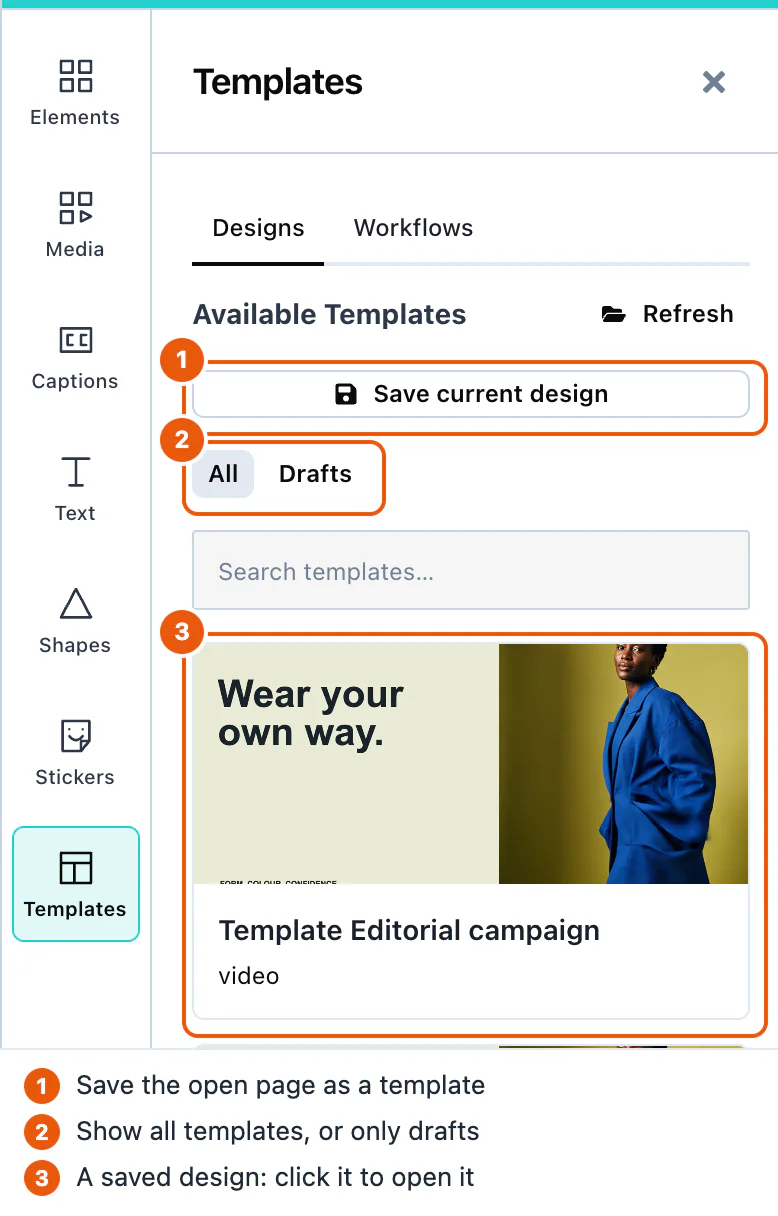
The panel shows only records with sceneMode set to "video" and a schemaVersion that this version of the editor can read. You can keep video and image designs in one list.
A template can come from a canvas of a different size. templateCanvasPolicy decides what happens then:
| Value | What happens |
|---|---|
'adopt' | The canvas takes the size of the template. This is the default. |
'fit' | The canvas keeps its size, and the design is scaled to fit inside it. |
'place' | The items keep their positions and sizes. Use it only when the sizes match. |
Default: no defaultTemplate, so the editor opens with an empty canvas. templateCanvasPolicy is 'adopt'.
A design that carries voiceoverScript puts its script back in the voiceover recorder. A design without one leaves the current script as it is. See Script and prompter.
Drafts
A draft is a design that the user has not finished. Save draft in the Export panel, or Cmd+S (Ctrl+S), sends it through the same onSaveTemplate, with draft: true on the record.
Saving a draft again updates the same record. The first draft save of a design makes a new template.id, and every later draft save of that design sends the same id, from the button, the keyboard, or automatic saving. Opening a draft from the Templates panel continues that draft under its own id. Opening another template, the defaultTemplate, or a new blank design starts a new record. A finished template save gets a new id every time. Store drafts by template.id, and replace a record that has the same id.
A draft record can carry two more fields:
chatSessionId: the conversation with the AI assistant that belongs to the design.generated: what AI models made during the session, including the words the user typed. Remove this field before you share a draft with other people.
The Templates panel shows drafts under Drafts.
To save drafts while the user works, turn on autosave:
ui={{ drafts: { autosave: true } }}Autosave starts only after the user has pressed Save draft once. After each change, it waits 30 seconds, and every further change restarts the wait.
Default: autosave is off. Every autosave is a request to your backend.
Server-side handling
Store each record exactly as you received it, and return it unchanged. The editor may add fields in later versions, and it reads them back.
This Node.js server stores each record as a file, and returns them all:
import { createServer } from 'node:http';
import { mkdir, readdir, readFile, writeFile } from 'node:fs/promises';

const FOLDER = './templates';
await mkdir(FOLDER, { recursive: true });

async function readBody(request) {
  const chunks = [];
  for await (const chunk of request) chunks.push(chunk);
  return JSON.parse(Buffer.concat(chunks).toString('utf8'));
}

createServer(async (request, response) => {
  if (request.url !== '/api/templates') {
    response.writeHead(404).end();
    return;
  }
  if (request.method === 'POST') {
    const template = await readBody(request);
    if (!/^[\w-]+$/.test(String(template.id))) {
      response.writeHead(400).end();
      return;
    }
    // Store the record exactly as the editor sent it, including fields you do not use.
    await writeFile(`${FOLDER}/${template.id}.json`, JSON.stringify(template));
    response.writeHead(201).end();
    return;
  }
  const files = await readdir(FOLDER);
  const templates = await Promise.all(
    files.map(async (file) => JSON.parse(await readFile(`${FOLDER}/${file}`, 'utf8'))),
  );
  response.writeHead(200, { 'Content-Type': 'application/json' });
  response.end(JSON.stringify(templates));
}).listen(3001);
Your page reaches it at /api/templates, for example through the proxy of your development server.
The record has these fields:
| Field | Type | Description |
|---|---|---|
id | string | A unique id that the editor creates for each save. |
scene | string | The design, as JSON text. |
thumbUri | string | A preview picture: a data: URL, or your own address when you pass onUploadAsset. |
sceneMode | string | "video" for the video editor. |
global | boolean | Reserved. Store it and return it. |
schemaVersion | number | The version of the scene format. |
canvasWidth, canvasHeight | number | The size of the canvas the design was made on, in pixels. |
draft | boolean | true on a draft. |
chatSessionId | string | On a draft: its conversation. |
generated | array | On a draft: what AI models made. |
voiceoverScript | string | The script of the voiceover recorder, when the design has one. Store it and return it. |
Pictures from the user's computer are stored inside scene as data, which makes records large. Videos and sound files from the user's computer need onUploadAsset, or the save fails. See Asset storage.