

Resizing
Change the canvas size for each social platform.
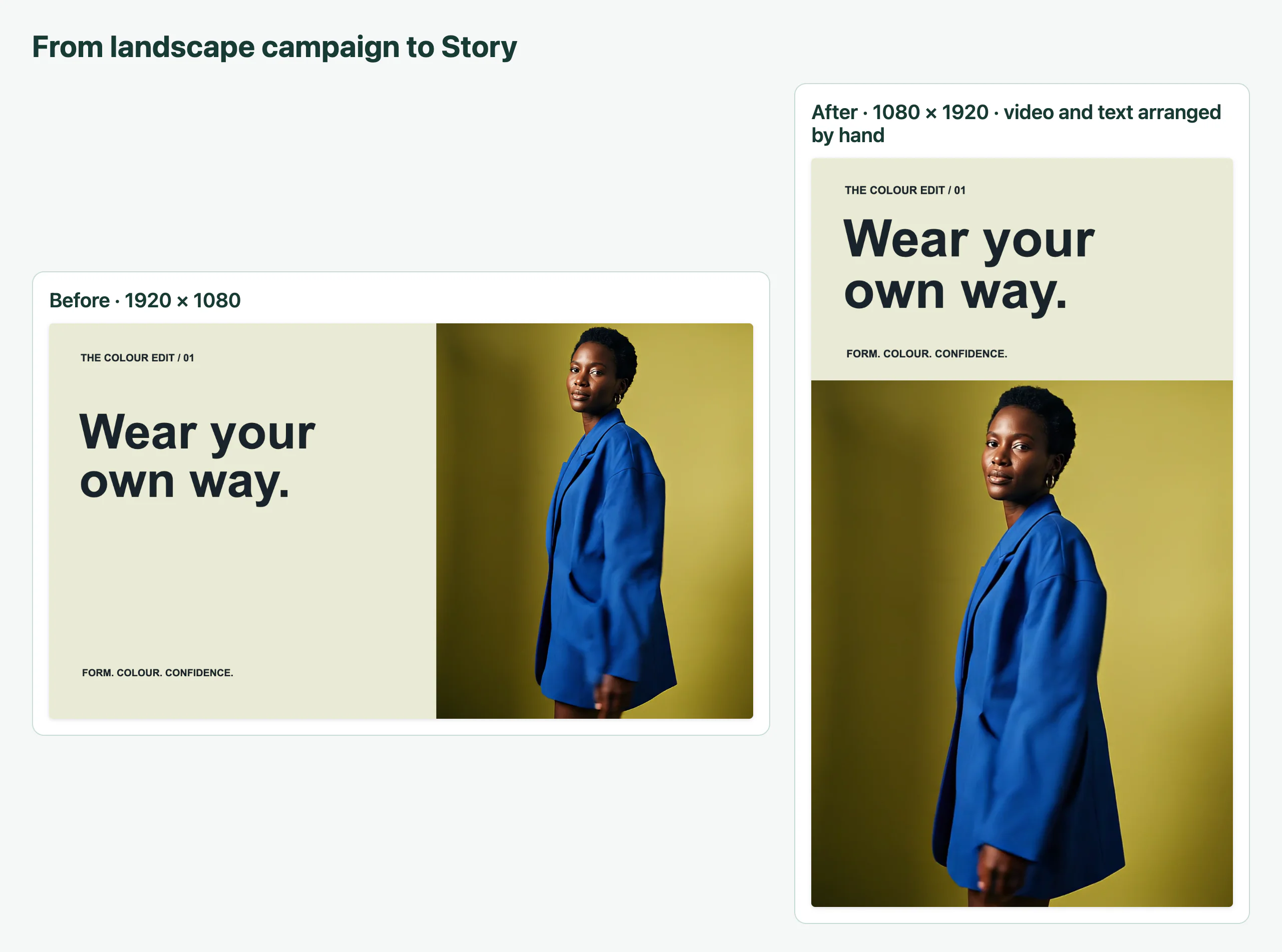
Resizing changes the size and shape of the video, for example from a 16:9 landscape video to a 9:16 story. The editor moves and scales the items to suit the new shape.
Setup
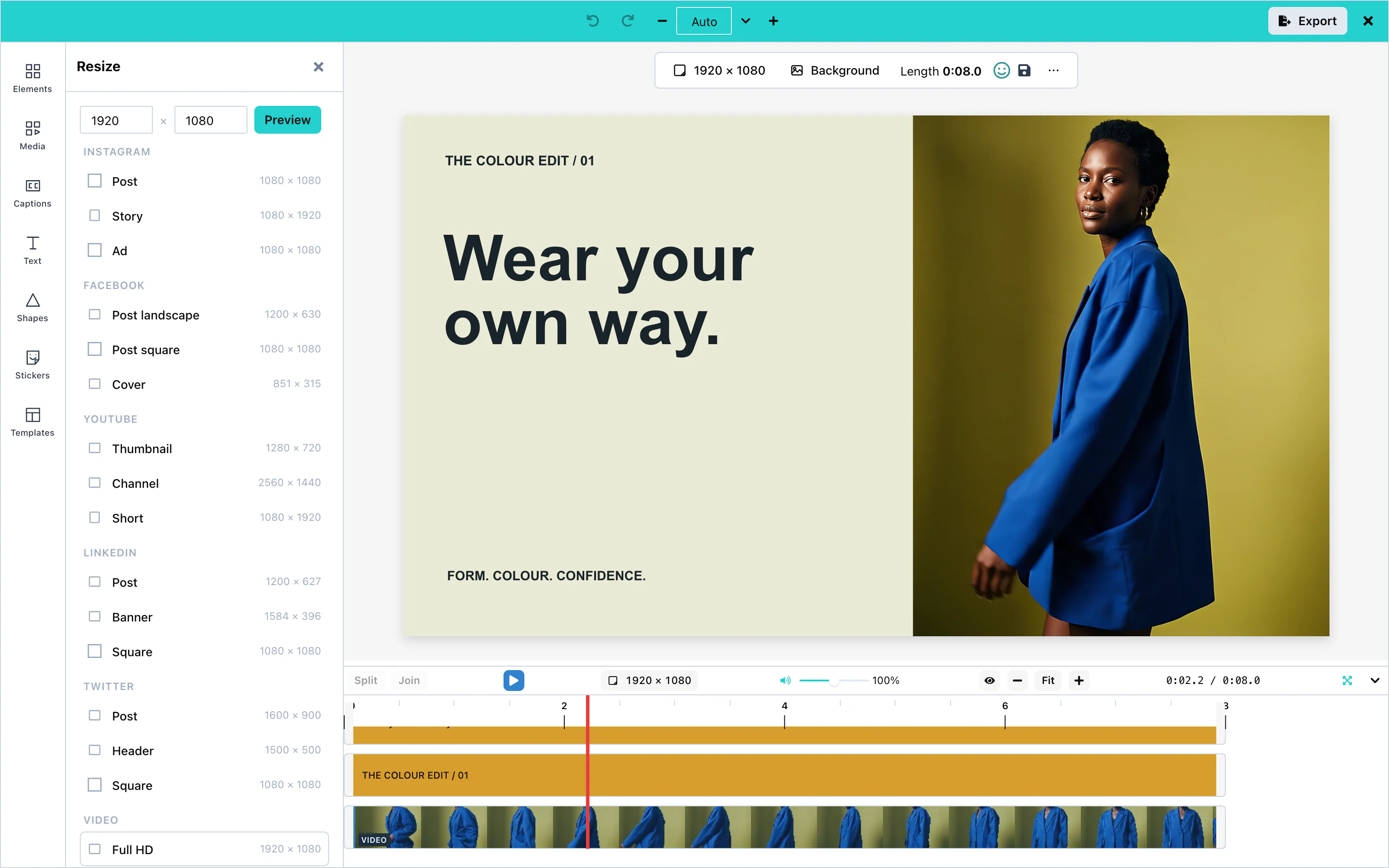
Resizing needs no setup. Press the canvas size above the timeline, for example 2048 × 1080, or Resize canvas in the toolbar above the canvas. In the compact layout, press Resize in the dock.
Default: a new video is 2048 × 1080 pixels until the user adds a clip or chooses a size.
Size presets
The panel lists sizes for common platforms:
| Platform | Sizes |
|---|---|
| Post 1080 × 1080, Story 1080 × 1920, Ad 1080 × 1080 | |
| Post landscape 1200 × 630, Post square 1080 × 1080, Cover 851 × 315 | |
| YouTube | Thumbnail 1280 × 720, Channel 2560 × 1440, Short 1080 × 1920 |
| Post 1200 × 627, Banner 1584 × 396, Square 1080 × 1080 | |
| Post 1600 × 900, Header 1500 × 500, Square 1080 × 1080 | |
| Video | Full HD 1920 × 1080, 4K UHD 3840 × 2160, Vertical HD 1080 × 1920, Square HD 1080 × 1080 |
| Invitation, A4, A3, Letter, Business Card, and Poster, in centimeters or inches |
 View full size
Choose a size. The panel shows the change, for example 2048 × 1080 → 1080 × 1920, and a preview. Press Apply to resize.
 View full size
Custom sizes
Choose Custom at the top of the list, and type the width and the height in pixels.
Video encoders need even numbers. When the width or the height is odd, Export offers to round the size to even numbers first. See Export.
Resize modes
Outside portions are excluded from the export. Select an item to edit its dimmed outside portion, or use edge markers and Move into canvas to recover an item completely outside. See Canvas editing.
The mode decides what happens to the items on the canvas:
| Mode | What it does |
|---|---|
| Fit | Everything stays visible, scaled down and centered. |
| Fill | Everything covers the new canvas. The edges can be cut off. |
| Reflow | Each item keeps its relative place, for example in the top-left corner. |
| Keep | Items keep their positions and sizes; use edge markers to recover outside items. |
| Blurred fill | Like Fit, and a blurred, darkened copy of the clip on screen fills the empty space behind it. Shown when a picture or clip is on screen. See Blurred background. |
The preview shows the result of the mode before you press Apply, background included. Undo reverses a resize; for Blurred fill, one Undo takes back the resize and the background together.
With Fit, Fill, Reflow, and Blurred fill, a blurred or softened background keeps the same look at the new size: its blur grows or shrinks with the short side of the canvas. Going from 1920 × 1080 to 1080 × 1920 keeps it the same. Keep does not change the blur.
Caption scaling
Captions keep their position and their size in proportion to the picture. A caption at the bottom of a landscape video is at the bottom of the vertical video too, and its letters scale with the new size.
Configuration
Resizing has no props. To remove the Resize button from the compact dock, hide it:
ui={{ dock: { hidden: ['resize'] } }}Events
Resizing has no events of its own. The new size reaches you in the exported video, and in canvasWidth and canvasHeight of a saved template.