

Resizing
Change the canvas size for each social platform.
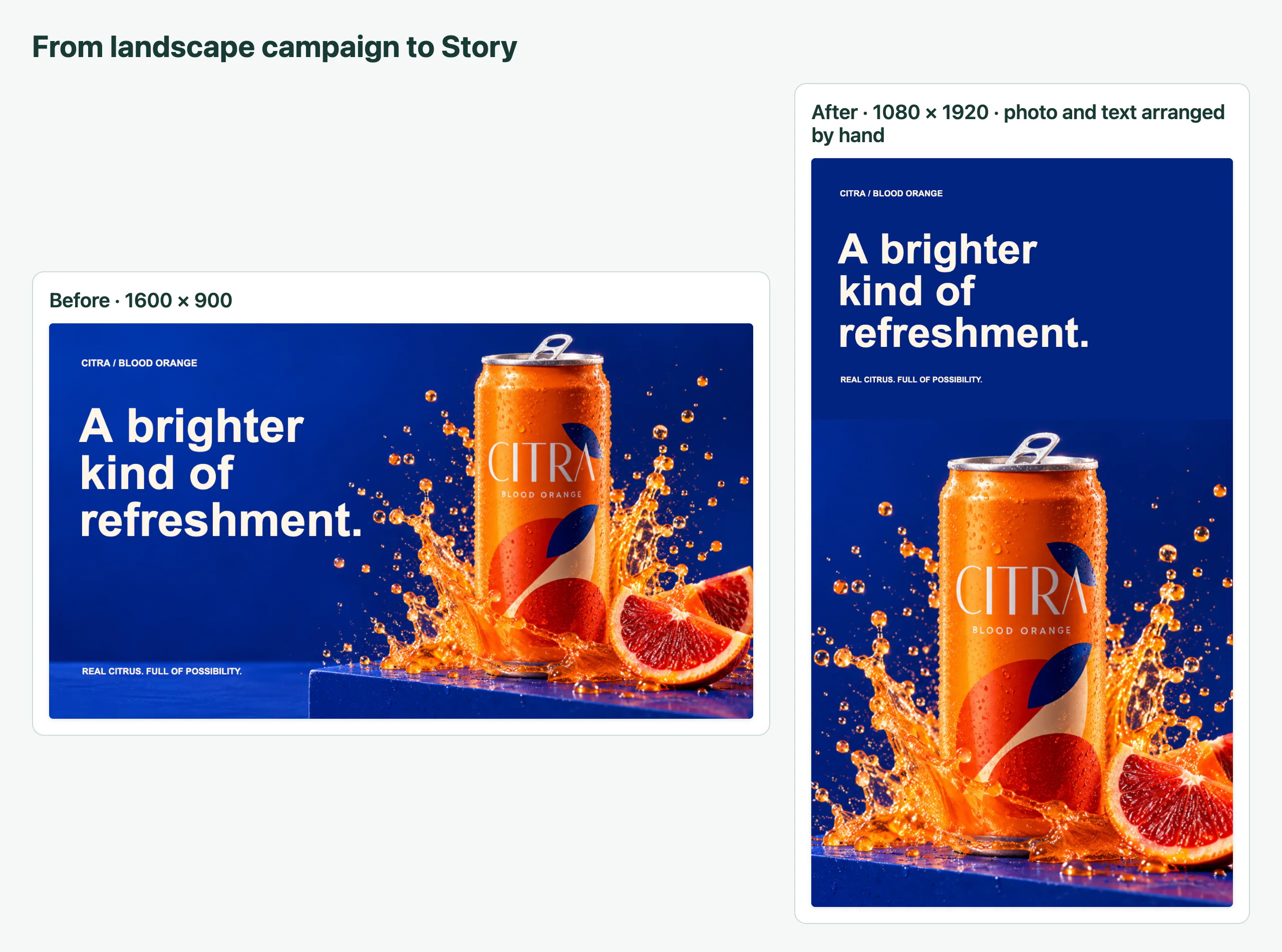
Resizing changes the size of the open page, for example from a square Instagram post to a tall Instagram story. The user picks a ready-made size or types a size in pixels, and chooses what happens to the elements on the page.
Setup
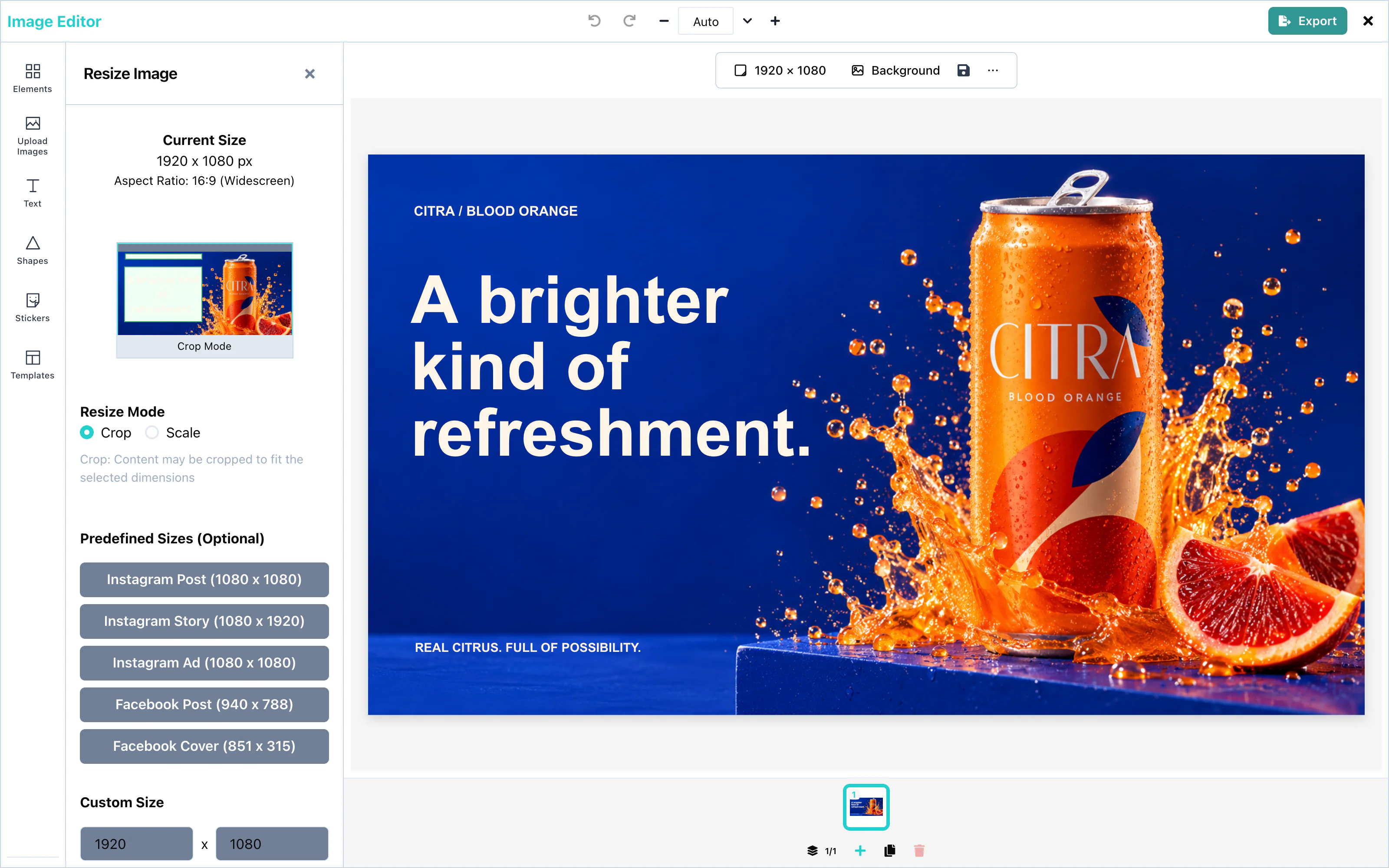
Resizing works with no setup. Select nothing on the page, and press Resize canvas in the toolbar above the page. In the compact layout, the tool is Resize in the dock.
import { ImageEditor } from '@layermetry/media-editor/react';
export default function App() {
return (
<div style={{ position: 'fixed', inset: 0 }}>
<ImageEditor
licenseKey="YOUR_LICENSE_KEY"
onExport={(file) => console.log(`Exported ${file.name}`)}
onClose={() => console.log('The editor was closed')}
/>
</div>
);
} View full size
The panel shows the current size and shape of the page, for example "1080 x 1080 px" and "1:1 (Square)". Press Apply Resize to change the page.
Size presets
Under Predefined Sizes (Optional), a click selects a size. A second click on the same size clears the choice.
| Preset | Size in pixels |
|---|---|
| Instagram Post | 1080 × 1080 |
| Instagram Story | 1080 × 1920 |
| Instagram Ad | 1080 × 1080 |
| Facebook Post | 940 × 788 |
| Facebook Cover | 851 × 315 |
 View full size
Custom sizes
Under Custom Size, type a width and a height in pixels. The editor rounds a number with decimals up to the next whole pixel.
Apply Resize works when both values are above zero and differ from the current size.
The largest file that PNG and JPEG export can create is 6000 × 4000 pixels. See Export.
Resize modes
Outside portions are excluded from the export. Select an item to edit its dimmed outside portion, or use edge markers and Move into canvas to recover an item completely outside. See Canvas editing.
Resize Mode decides what happens to the elements on the page:
| Mode | What happens |
|---|---|
| Crop | The elements keep their size. An element that would stick out past the new edge moves back inside. Parts may be cut off when the page gets smaller. This is the default. |
| Scale | The elements grow or shrink with the page, and keep their proportions. |
With Scale, the Fitting Mode decides how pictures fill the new page:
| Fitting mode | What happens to a picture |
|---|---|
| Fit | The whole picture shows. Borders can appear. This is the default. |
| Fill | The picture fills the page. Parts may be cut off. |
| Crop | The user chooses the part of the picture that shows. |
| Stretch | The picture fills the page, and its proportions change. |
| Center | The picture keeps its size, in the middle. |
What's the difference? next to Fitting Mode explains the modes with pictures. Stretch shows a warning, because it distorts pictures.
The background always fills the new page. Each page has its own size, so resizing changes the open page only.
Configuration
Resizing has no props. To offer other sizes, users type them under Custom Size.
Events
Resizing has no events. The new size reaches you in the exported file: its width and height in pixels. See Export.