

Templates
Load, save, and manage templates.
Templates are saved designs that users open again as the start of a new video. Your application stores them. The Templates panel lists them, and it also holds Workflows: actions that change many clips in one press.
Setup
The template library needs your storage: onGetTemplates to list templates, and onSaveTemplate to save them. See Saving and loading for a complete example.
Built-in text templates need no setup. Pass textTemplates to add host templates; see Text templates.
Template library
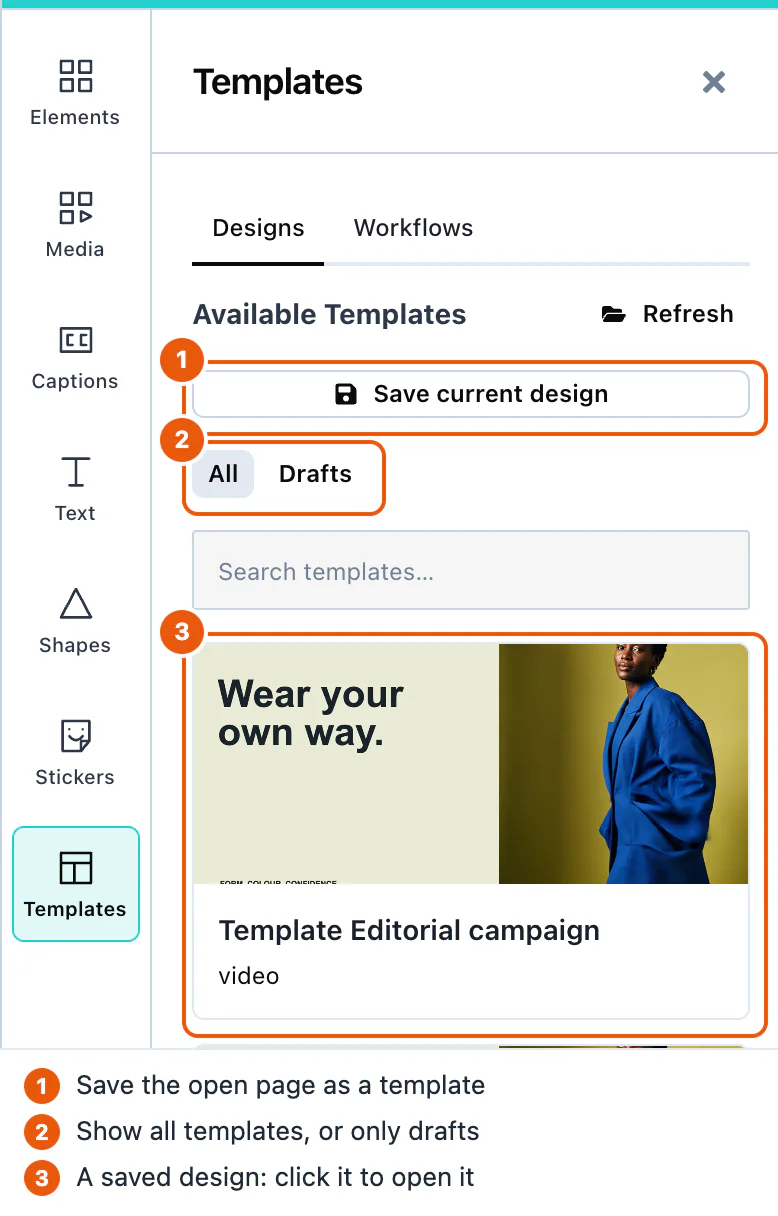
Open Templates in the tool rail. The Designs tab calls onGetTemplates and shows the video templates it returns. A click on a template opens it on the canvas. Refresh asks again.
Without onGetTemplates, or when it returns no video templates, the tab says "No templates available".
The tab shows only records with sceneMode set to "video", so one list can hold video and image templates. All and Drafts filter the list.
When a template was made on a canvas of another size, templateCanvasPolicy decides what happens. See Loading designs.
Saving templates
With onSaveTemplate, the user saves the current design with Save current design in the panel, or with the save button in the toolbar above the canvas. See Saving designs.
Drafts
Save draft in the Export panel, or Cmd+S (Ctrl+S), saves unfinished work through the same onSaveTemplate, marked draft: true. The Drafts filter lists them. See Drafts.
Text templates
The Text panel includes built-in and host-provided text templates. See Text templates.
Workflows
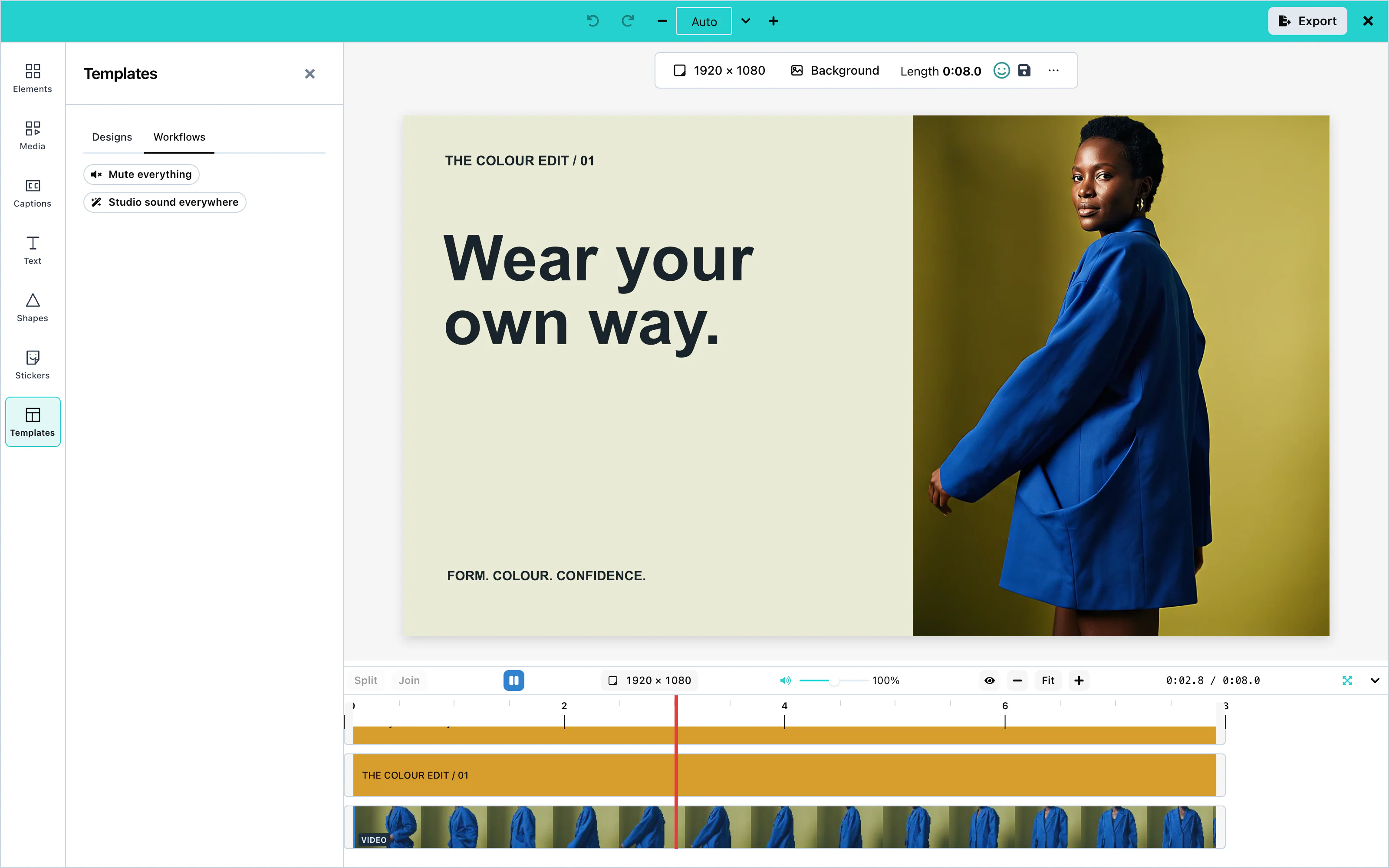
A workflow applies the same change to many items in one press. The Workflows tab lists the built-in workflows, then yours:
| Workflow | What it does |
|---|---|
| Mute everything | Mutes every clip with sound. |
| Studio sound everywhere | Applies the Crystal Clear audio preset to every clip with sound. |
Select a workflow and press Run. A message says how many items changed.
Add your own workflows with the workflows prop. A workflow is plain JSON, so you can store it like a template:
import { VideoEditor } from '@layermetry/media-editor/react';
// A workflow of your own: one press applies the Podcast preset to every clip with sound.
const podcastSound = {
id: 'acme.podcast-sound',
title: 'Podcast sound',
description: 'Broadcast-standard voice on every clip with sound.',
scope: 'all-audio' as const,
source: 'host' as const,
steps: [
{ op: 'applyAudioPreset', params: { presetId: 'podcast-ready' }, label: 'Apply the Podcast preset' },
],
};
export default function App() {
return (
<div style={{ position: 'fixed', inset: 0 }}>
<VideoEditor
licenseKey="YOUR_LICENSE_KEY"
onClose={() => console.log('The editor was closed')}
workflows={[podcastSound]}
/>
</div>
);
} View full size
| Field | Description |
|---|---|
id | A unique name. |
title, description | The text shown in the list. |
scope | Which items change: all-audio (every clip with sound), selection (the selected items), or canvas. |
source | Where the workflow comes from. Use host. |
steps | The actions, in order. Each step has an op, optional params, and a label. |
There are two operations:
op | params | What it does |
|---|---|---|
setMuted | { muted: true } or { muted: false } | Mutes or unmutes each item. |
applyAudioPreset | { presetId } | Applies an audio preset, such as crystal-clear, podcast-ready, youtube-video, or fix-hum. |
The editor checks each workflow when it starts. A workflow with a mistake is skipped, with a warning in the console that says why.
AI workflows
Coming soonAI workflows will build a workflow from a description in words.
Configuration
| Prop | Type | Default | Description |
|---|---|---|---|
onGetTemplates | function | none | Returns the templates for the Designs tab. |
onSaveTemplate | function | none | Stores a template or a draft. Without it, there is no save button. |
templateCanvasPolicy | string | 'adopt' | What happens when a template's canvas size differs: 'adopt', 'fit', or 'place'. |
workflows | array | none | Your workflows, shown after the built-in ones. |
ui.drafts.autosave | boolean | false | Saves drafts while the user works. |
Events
After each save, the custom element sends templatesave with detail: { template, saved }. See Events.